Skip to content
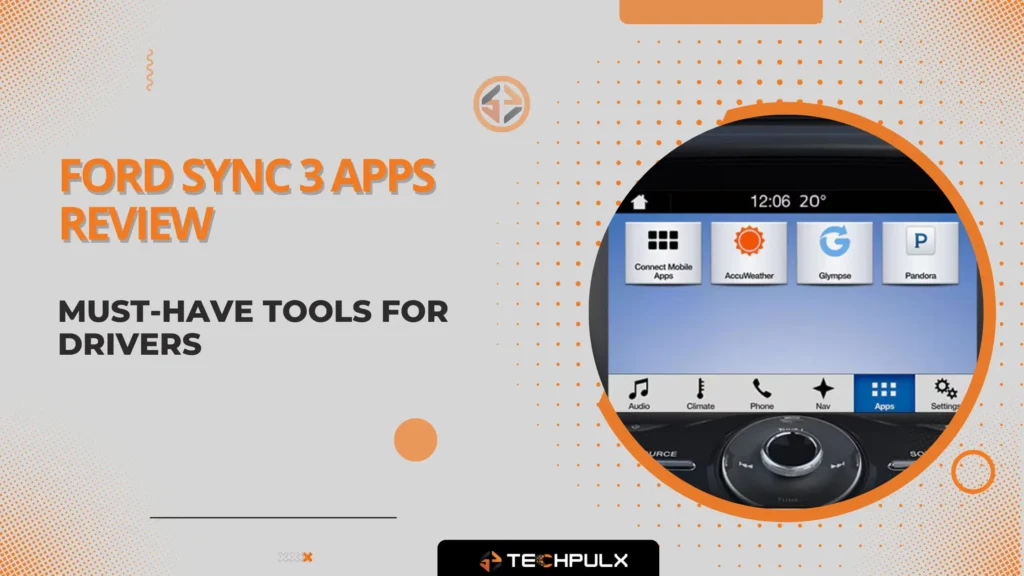
Driving now means dealing with endless interruptions. Checking routes, changing songs, or answering texts keeps your mind busy while behind the wheel. But with Ford SYNC 3 Apps, your phone hooks up straight to the dashboard – no fuss. Instead of fumbling around, you get guidance, tunes, and car controls at hand. That way, eyes stay forward, hands stay steady, yet everything stays close.
In this blog, you’ll discover Ford SYNC 3 apps – how to get them running plus practical uses behind the wheel. Once done, you’ll clearly see which ones actually belong in your ride.
What Are Ford SYNC 3 Apps?
Ford SYNC 3 Apps are built-in and smartphone-connected applications that work with the Ford SYNC 3 infotainment system. They allow drivers to access navigation, music, calls, and messages through the vehicle’s touchscreen. SYNC 3 supports Apple CarPlay and Android Auto for using compatible mobile apps safely. The system responds to touch and voice commands for hands-free operation. Popular apps include maps, music streaming, and phone functions. These apps are designed to improve convenience, connectivity, and driving safety.
Understanding Ford SYNC 3
Ford SYNC 3 isn’t only a screen – you get a full entertainment setup.
What makes it different? Check this out:
- Touchscreen Interface: Pinch-to-zoom, drag, and swipe just like your smartphone.
- Voice Commands: Handle tunes, directions, phone chats – also texts – without lifting a finger.
- Get live traffic info, change your route on the fly, or follow spoken turn-by-turn directions.
- Use your phone’s app through AppLink – also works with Apple CarPlay – or just fire up Android Auto.
The big plus? Apps and tools right at hand – no need to mess with your phone, so driving feels smoother and way less stressful.
Essential Smartphone Integration
Apple CarPlay & Android Auto
Your smartphone runs tons of apps, yet Ford SYNC 3 helps you show them on your dashboard without hassle. For iPhone users, Apple CarPlay pulls up your phone’s layout right onto the display – while Android Auto does the same thing if you’ve got an Android device.
Benefits:
- Friendly layout that works with the tools you love.
- Fresh apps all the time – no need for SYNC’s default tools.
- Voice commands via Siri or Google Assistant help you focus better.
Setup:
- Hook up your iPhone or Android device through a USB cord.
- Just follow what shows up on your screen to turn on CarPlay or Android Auto.
- Launch apps from your device – those show up on SYNC 3 right away.
Navigation Apps
Finding your way? That’s where SYNC 3 Apps shine. See how top apps compare here:
- Google Maps shows live traffic updates, suggests alternate routes when there’s a backup, or points out quicker paths using current road conditions.
- Apple Maps runs well on your iPhone – offering turn-by-turn directions while showing which lane to stay in. It adapts as you drive, helping avoid last-minute switches.
- Waze: Crowd-sourced traffic alerts and hazard notifications for faster, smarter routes.
Give it a go – tell your phone “Take me to [place] with Waze” while driving. This helps you stay focused, hands where they should be. No reaching for the device once you start moving.
Media & Entertainment
SOUND setup stays on when you’re behind the wheel, meaning your hands stay put. Favorites include apps such as Spotify or Audible.
- Spotify
- Apple Music
- Pandora
- YouTube Music
You could tell your voice helper to “start my exercise tunes” – or change tracks right from the screen. On extended drives, audio stories or spoken shows help riders stay busy while keeping the driver more alert.
Voice Assistants
Siri plus Google Assistant helps you drive more easily. These tools let you:
- Chat or call without using your hands.
- Provide weather updates, news, or reminders.
- Switch tunes or maps hands-free – no need to tap the display.
Working right with voice helpers might lower crashes from phone use while driving.
Ford-Specific Apps & Features
Ford App (formerly FordPass)
The Ford App links your car with your phone, so you can manage key actions from one place. Among its main traits are:
- Start or stop your vehicle from afar – great when you want it warmed up before driving in cold weather – or just need to open the doors without being there.
- Get alerts on your car’s health – like low fuel or oil changes – with timely warnings so you stay ready without surprises.
- GPS tracking keeps you updated on where your car is – anytime, anywhere. Use it to stay informed without hassle.
- Set up service times right in the app – pick the dealer you like. Choose your slot without hassle, straight from your phone.
Plenty of Ford drivers say the app keeps their upkeep on track – so they dodge surprise issues while cutting down shop trips.
Ford+Alexa
Ford+Alexa lets you use Amazon’s voice assistant right from your car, thanks to SYNC 3 AppLink. So, you’re able to:
- Use spoken directions along with real-time traffic info.
- Get more than 30k Alexa features – like tunes, updates, or helpers for daily tasks.
- Manage your home gadgets from anywhere you’re traveling.
With Alexa built in, drivers get voice control that goes past tunes or maps – so you can skip touching things while rolling down the road.
SYNC 3 AppLink
AppLink allows selected apps to run directly on SYNC 3. Unlike CarPlay or Android Auto, it’s designed specifically for Ford vehicles.
Recommended AppLink apps:
- Navigation apps for basic routes.
- Music apps for safe playback.
- Voice assistant tools like Ford+Alexa.
Tip: Use AppLink for essential apps if you prefer minimal distractions, or combine it with CarPlay/Android Auto for full functionality.
Real-Life Use Cases
Daily Commutes
- Avoid traffic jams using Waze or Google Maps.
- Check weather conditions before heading out with AccuWeather.
- Share your ETA with family or colleagues using Glympse.
Road Trips
- Plan stops with navigation apps.
- Keep passengers entertained with playlists or podcasts.
- Manage calls, messages, and directions safely with voice commands.
Troubleshooting & Tips
Troubleshooting becomes easier when you follow a few quick checks. Start by making sure the app is active and running properly on your phone. Next, confirm that all required permissions are granted so the app can function without restrictions. If the issue continues, inspect your USB connection or switch to a Bluetooth link to see if the problem resolves.
Keeping Everything Updated:
- Update SYNC 3 software regularly.
- Update your CarPlay or Android Auto apps regularly – so they run smoothly without glitches.
Note: Some older SYNC setups might miss out on certain apps.
Safety tip: Skip setting up apps when you’re behind the wheel – handle it beforehand instead.
SYNC 3 Apps Overview Table
| App Category | App Name | Interface | Key Feature |
| Navigation | Waze | Android Auto | Real-time traffic updates |
| Navigation | Google Maps | CarPlay, Android Auto | Voice-guided directions |
| Location Sharing | Glympse | AppLink | Forecasts and severe weather alerts |
| Voice Assistant | Ford+Alexa | AppLink | Voice guide |
- Try AppLink to get things done without extra noise – also keeps your focus sharp.
- CarPlay or Android Auto gives you complete app use, fun features, yet solid voice commands.
Conclusion
Ford’s SYNC 3 apps make your ride smarter, safer, and also more connected. Use AppLink if you want key apps on screen, or go with CarPlay and Android Auto to bring your phone fully into the dash. These features guide you around jams, keep tunes handy, yet let you handle car tasks without hassle.
Recommendations:
- Keep it basic: go with AppLink along with key Ford tools.
- For full functions, try CarPlay or go with Android Auto to get more apps along with media options.
Get the right apps, and your daily ride gets easier. Road trips feel better thanks to handy tools along the way. Safer driving? That’s what happens when tech helps out. Skip the old ways – use Ford SYNC 3 Apps to stay sharp on the road.
FAQs
Do I need mobile data for SYNC 3 apps to work?
Most apps need an internet connection, especially navigation and streaming tools.
Why isn’t my phone connecting to SYNC 3?
Often it’s due to a bad USB cable, missing permissions, or outdated software.
Can SYNC 3 run apps without using Apple CarPlay or Android Auto?
Yes – AppLink supports selected apps directly on the SYNC 3 screen.
Does SYNC 3 support wireless CarPlay or Android Auto?
Most SYNC 3 systems use wired connections, unless specific models include wireless support.
Will SYNC 3 drain my phone battery?
Using navigation or media apps can drain battery, but a USB connection typically offsets it.